
Showing posts with label tips n tricks. Show all posts
Showing posts with label tips n tricks. Show all posts
Monday, November 14, 2011
Desktop make over with 360 Desktop


Friday, November 11, 2011
Scheduling using Essential PIM

Saturday, November 5, 2011
Change the File Format Online

When working with computers, we use a variety of file types. Sometimes, we need to change the format of a file to another format. For example, maybe we need to change the file with .doc format to .pdf format. Indeed there are many software that can help us. But something often becomes a problem is when we need to change the format of a file quickly, but we do not have the software to change it, and we do not have much time to search for that software.
Tuesday, November 1, 2011
Hidden emoticons in yahoo messenger

Let's use the following emoticons when we chat using yahoo messenger. With these little characters we can make our conversations more interesting, besides it can show our feelings to friends. These characters hidden from the emoticon menu, but we can still type the code shortcuts directly into our message. We can also include it in our status message - just type the characters emoticons in our status message (only in Yahoo! Messenger version 9.0 and 10).
Wednesday, October 26, 2011
How to optimize PC

At this time we will discuss about how to speed up computer performance with a little tweaking of the settings on our Windows operating system. By applying the modifications, optimizer or tweaking the settings in the Windows Registry our computer will work faster than ever.
The following are the steps to speed up computer performance :
- Turn off some Start Up features
This will speed up Windows loading at boot time or the first time we turn on the Computer. Below are the steps :
- Go to RUN >>> type MSCONFIG >>> OK >>>
- Select the Start Up menu
- Remove all the check mark in the Start-up
- Click Menu service >> Remove the check mark on Automatic Updates
- Click >>> Aplly >>> Ok
- Restart windows
- Registry Optimation
Change the Windows Registry as below :
- Go to RUN >>> type REGEDIT >>> OK >>>
- Go to MY COMPUTER >> HKEY_CURRENT_USER >> CONTROL PANEL >> DESKTOP
- Find MENU SHOW DELAY. Double click and change the value to 10
- Find Hung-UP TIME OUT. Double Click and change value to 5
- Go to MY COMPUTER >> HKEY_LOCAL_MACHINE >> SYSTEM >> ControlSet001 >> CONTROL >> WAIT TO KILL SERVICE. Change the value to 500
- Go to MY COMPUTER >> HKEY_LOCAL_MACHINE >> SYSTEM >> CONTROLSet002 >> CONTROL >> WAIT TO KILL SERVICE. Change the value to 500
- Go to MY COMPUTER >> HKEY_LOCAL_MACHINE >> SYSTEM >> CURRENT CONTROL Sets >> Control >> session MANAGER >> MEMORY MANAGEMENT >> DISABLE paging EXCecutive. Change the Value data to 1
- Virtual Memory Optimation
- Go to Control Panel >> System >> Advanced >> Performance Settings >> Select Custom >> Check on: "Use Drop Shadow For Icon labels on the desktop" and "Use visual styles on windows and buttons".
- Click Apply
- In the advanced menu >> Virtual memory >> Change >> Click on drive C: Windows >> Select Custom Size >> Change the value on Initial size and Maximum Size as 2x from the previous value, for examples: from 256 to 512, 512 to 1024.
- Go to Control Panel >> System >> Advanced >> Performance Settings >> Select Custom >> Check on: "Use Drop Shadow For Icon labels on the desktop" and "Use visual styles on windows and buttons".
After tweaking finished, restart our computer and then our computer performance will be faster
Sunday, October 23, 2011
How to activate hyper terminal in windows 7

Fortunately there solisi to enable or display the Hyper terminal in windows 7, how easy, we just go to a computer that is still using Windows XP OS, then Copy 2 pieces of a file that is associated with hyper terminal and hypertrm.dll hypertrm.exe. Here is the steps :
- Locate both files in these locations :
C:\Program Files\Windows NT\hypertrm.exe
C:\WINDOWS\system32\hypertrm.dll
- Copy those files to our windows 7 computer
- To run the Hyper Terminal, Execute hypertrm.exe
- Alternatively, you can download those files here
Saturday, October 22, 2011
How to create one link to 2 address

This posting will discuss about how to create one hyperlink that when it's clicked it will go to 2 url address. Click this link to see the example. Just add onclick event and target of your hyperlink. Below is the code :
<a href="http://www.blogger.com" onclick="window.open(http://www.google.com)">2 Link 1 click</a>
Wednesday, October 19, 2011
How to create json From PHP

JSON stands for JavaScript Object Notation is a subset of the object literal notation of JavaScript. Since it can be used in javascript with no muss or fuss. Below is the example of JSON :
var myObject = {nations: [
        {name: "England", continent: "Europe"},
        {name: "USA", continent: "America"},
        {name: "JAPAN", continent: "Asia"}
    ]
};
This posting will discuss about creating JSON from PHP-Mysql Database driven application. The following is the step to do that :- Get Data from database.
For example we have table "country" contains two columns name, and continent. So, we need to query data.
$query = "select * from country"; $parse = mysql_query($query); while($row = mysql_fetch_object($result)){ $result[] = $row; } - Convert data to json
- Create json object
- Check JSON
That's it. JSON already created
var myString = '<?php json_encode($result);?>';
var myObject = eval('(' + myString + ')');Sunday, October 16, 2011
How to make CD presentation using Ms. Power Point
if we need lots of copies of the presentation we make , it is better to make it in the form of a CD . It Would be a hassle if we make it one by one like to make a autoplay CD.
At this time, we would like to share how to create Microsoft Power Point Autoplay CD using MS PowerPoint 2003.
The following is the step to do that :
At this time, we would like to share how to create Microsoft Power Point Autoplay CD using MS PowerPoint 2003.
The following is the step to do that :
- Open File -> Package for CD
- Name CD we want to make

- By default the opened slide presentation that is inserted into the CD.We can add other files slide presentation by clicking the Add Files button
- By default all supporting files are also included in the CD, so we can run CD without PowerPoint installed on our computer. we can change it by clicking the options button

- Now it's time to burn process by pressing the Copy to CD. We also can save the file into the folder without burning by pressing the Copy to Folder


Saturday, October 15, 2011
How to backup firefox easily
Are you firefox user ?. if so, this post will discuss about how to backup bookmarks, histories, cookies, addons or even settings. This is very important when we reinstall our operating system. We need not to resetting firefox, just restore our previous setting.
To do that, we need MozBackup.
Using MozBackup (Backup)
Below the steps to use mozbackup :
To restore backup do the following :
To do that, we need MozBackup.
Using MozBackup (Backup)
Below the steps to use mozbackup :
- Downlad the application
- Extract downloaded file
- Run Mozbackup.exe

- To backup, check Backup a Profile and choose Mozilla Firefox
- Click Next, ensure that Firefox is closed
- Choose the path where we want to save the backup by clicking browse
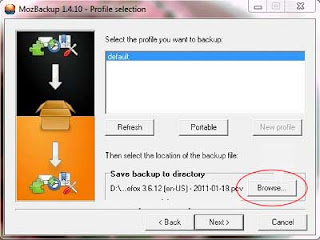
- Click next, there is confirmation to put password on backup file or not. if yes, click yes then input the password
- The next window display item that we want to backup. Check the item that we want to backup, then click Next

- Wait until all process end, then click Finish


To restore backup do the following :
- Open Mozbackup.exe
- Choose Restore file
- Click Next
- Choose file backup to be restored. If we set password, we will be prompted to input the password. Click Next
- Wait until restore process end
Friday, October 14, 2011
Block USB port using 'USB Block'
Do you hate if someone plug usb on your computer or laptop without permission ?? if it iss so, may be you should try this application. This application is a USB BLOCK, the function of this application is to block USB port that are connected to our computers.
So when there is a flashdik or external hard drive plugged, our laptop or computer will ask for a password that we have set. But do not worry, this application also has the facility to recognize devices that often be connected, so if we've allowed the device, then the application will not ask for the password again.
To download USB Block klik this link downlad.
After install run the application. Below is image of the main form :

Tips Using USB Block
If we have usb block installed, in order this application does not always ask for password every time we plug devices, do as below :

Input password and check Remember (Add Authorize list).
The Application will remember the device that we plugs in, so it will not ask for password again.
So when there is a flashdik or external hard drive plugged, our laptop or computer will ask for a password that we have set. But do not worry, this application also has the facility to recognize devices that often be connected, so if we've allowed the device, then the application will not ask for the password again.
To download USB Block klik this link downlad.
After install run the application. Below is image of the main form :

Tips Using USB Block
If we have usb block installed, in order this application does not always ask for password every time we plug devices, do as below :
Input password and check Remember (Add Authorize list).
The Application will remember the device that we plugs in, so it will not ask for password again.
Thursday, October 13, 2011
Tips to make laptop battery More Durable

After having a laptop, we usually will be forgotten or do not even know to treat the laptop properly . Just use and use it . Sometimes we will be panic when there is indicator of broken . At that time , we just remained what we have been treated at our laptop and then looking for a cure for that
One part of the laptop that often broken is a laptop battery. The cases for example are the battery consumption is reduced, leaking, or even can not be in-charge at all
The following are tips and tricks to maintain laptop batteries :
Do not directly use the laptop that we just bought
While new , The empty laptop battery must be charged in advance between 4-8 hours until the indicator lights show full charge ( usually light indicator is green , for certain brands may be another color ). Noteworthy is while charging , the laptop must be turned off.
Only use the laptop battery for mobile purposes
If we are using a laptop at home or at work for a long time , we should remove laptop batteries immediately and use electricity . If the battery is installed and the charger in a state of charge , it will cause battery leak rapidly. Moreover , that way can cause heat which can shorten the life of the battery
Remove the adapter when battery is full
Using a laptop with a battery attached while charging can shorten battery life
Do not let the laptop not used for a long time ( in months )
This can cause laptop batteries to lose capacity. To avoid this , try to turn on the laptop at least once a month
Remove the battery from the laptop when the laptop is not used in a long time
If we must remove the battery from the laptop , make sure we put them in a dry and cool place. Do not save your laptop battery in place with extreme temperatures or exposed to direct sunlight . This will cause damage to the battery components.
Install additional fans on the laptop
Using laptops for a long time can cause excessive heat , and the temperature of this heat can interfere the performance/battery capacity.
By treating the battery as it has explained above, it is expected to be able to reduce the risk of damage to our laptop batteries
Wednesday, October 12, 2011
Tips Ms. Excel
 |

Here it is some tips using excel :
- Insert Date and Time
To insert the date in Cell, press [Ctrl] while pressing Colon / semicolon. Similarly, to add a time, press [Ctrl] + [Shift] while pressing Colon / semicolon - Change the Tab Color
We can change the color of the tabs in an Excel spreadsheet. Click the tab we want to change, then select the [Format] [Sheet] [Tab Color]. Specify color and click [OK]
- Hide the sheet
We can hide an Excel worksheet to reduce the number of sheets on the screen. Highlight Sheet which will be hidden and select [Format] [Sheet] [Hide]. To show click [Unhide]
- Clear format
To clear the formatting in an Excel spreadsheet, highlight the cells and select [Edit] [Clear] [Formats].
- Monitoring Cell
Use the Watch window to monitor cells in other workbooks. To add the Cell to the Watch Window, right-click on the Cell and select [Add Watch]. You can adjust the position of Watch Window above or below the standard toolbar of Excel
- Add Quotes
Excel can recognize stock symbols and fetch stock quotes using MSN MoneyCentral Investor. First, activate the Smart Tags by selecting [Tools] [AutoCorrect Options] [Smart Tags]. Be sure the "Label data with smart tags" is checked, and press [OK]. Open the Internet and enter the stock symbol into the Cell. A small green triangle will appear at the bottom right corner of the Cell. Hover your cursor over the cell, click the icon that appears and select "Insert refreshable stock price." Select "On a new sheet" to display the quote on another worksheet or "Starting at cell" to display the stock price at the current cell open.
- Change the cell at once
To change the typeface or size of all cells in the spreadsheet at once, click the box in the upper left corner
- Sorting data
we can rearrange the data in a spreadsheet by clicking the box in the upper left corner. Then select [Data] [Sort]. In the Sort window, select the column you want sorted from top to bottom or vice versa.
Tuesday, October 11, 2011
How to create lines in ms.word 2007 faster

How do you create lines in Ms.Word now ?? Does it using mouse. Actually, With the keyboard, we can create different types of lines in Word 2007 faster. Here it is :
- If we want to make a simple straight line, type three dashes (---) and then press ENTER
- If we want to make the dotted line, type three asterisks (***) and then press ENTER
- if we want to make a thicker straight line, type three underscores (___) then press ENTER
- if we want to make a double straight line, type three equal (===) then press ENTER
- if we want to create a triple line, type three sharp signs (###) and then press ENTER

Subscribe to:
Posts (Atom)